🎧 Solving Regional Music Copyright Restrictions: MusicFree Configuration Guide

Friends working overseas likely have a major pain point in their daily work: music copyright restrictions. The habitually used NetEase Cloud and QQ Music have most playlists turned grey due to regional restrictions.
After attempting various solutions, I finally locked onto the MusicFree open-source project. It does not store music, but aggregates network-wide resources through plugins. This blog post mainly records the configuration process, hoping it can help everyone.
Table of Contents
1. What is MusicFree?
MusicFree is essentially a local player shell.
- Decentralized: The software itself has no song data.
- Plugin-based: Through importing JavaScript plugins, it can fetch audio interfaces from platforms like NetEase, QQ, Kugou, Bilibili, etc.
- Ad-free: Completely open-source and free, without various pop-ups and membership restrictions.
2. Download & Installation
Go to the project’s GitHub Releases page or use the mirror link below to download.
- Project Homepage: MusicFree
- Mac Users: If using an M-chip (M1/M2/M3), please download the
.arm64.dmginstallation package.
When installing and opening for the first time on macOS (especially M series chips), the system often pops up the following blocking prompt:
“MusicFree” is damaged and can’t be opened. You should move it to the Bin.
This is not really because the software is broken, but because the macOS Gatekeeper mechanism blocked the open-source software without an official Apple signature.
✅ Fix Method
We need to use terminal commands to remove the file’s “quarantine attribute”. Please operate according to the following steps:
- Open Terminal.
- Enter the following command (note there is a space after
cr):sudo xattr -cr /Applications/MusicFree.app - Enter computer password and press Enter (screen will not display characters when typing).
If you haven’t dragged the software into the “Applications” folder, you can also type sudo xattr -cr first, then directly drag the MusicFree icon into the terminal window, and the path will auto-complete.
After completion, click the APP again, and it can be opened normally.
3. Configuring Plugin Sources (Core Step)
After opening the software, you need to import plugins to be able to search for songs.
- Click “Plugin Management” in the left sidebar.
- Click “Install from Network”.
- Copy the following JSON link and fill it in:
This is an aggregation source with relatively complete collection:
Click here to copy the Plugin Source JSON
Note: If the link above is invalid, you can Google search for other plugin sources yourself.
4. Usage Experience
After configuration is complete, click the Search icon on the left to aggregate search for network-wide music.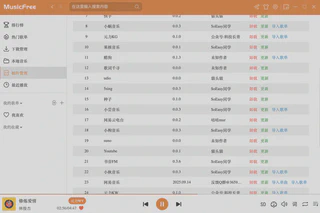
- Import Playlist: Supports directly pasting NetEase or QQ Music playlist links to sync your favorites.
- High Quality Download: Most songs support lossless quality download.
- Lyrics Display: Supports desktop lyrics and cover display.
For friends in overseas or specific copyright-restricted regions, hope everyone can Happy Listening! 🎵
